
Sam360 integrates with Microsoft Intune to collect comprehensive inventory from Intune-managed Windows devices. The Management Point registers and maintains an Intune PowerShell platform script that runs on the selected schedule.
The integration is configured from the Sam360 Management Point using the Intune setup wizard. The wizard creates a dedicated Sam360 application registration and client secret, requests admin consent for the required Microsoft Graph application permissions, and stores the application credentials locally on the Management Point.
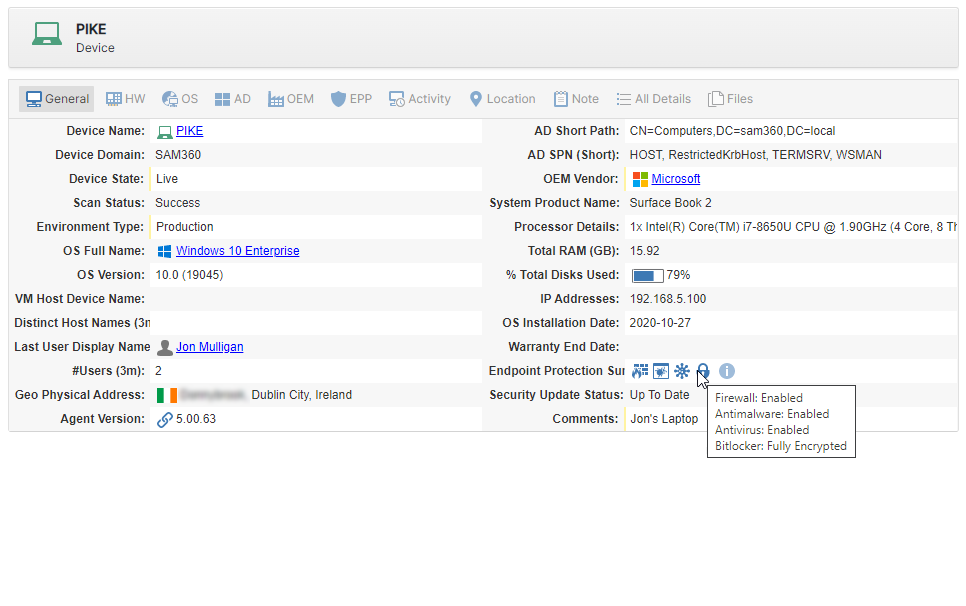 Intune Sam360 Scan General Details
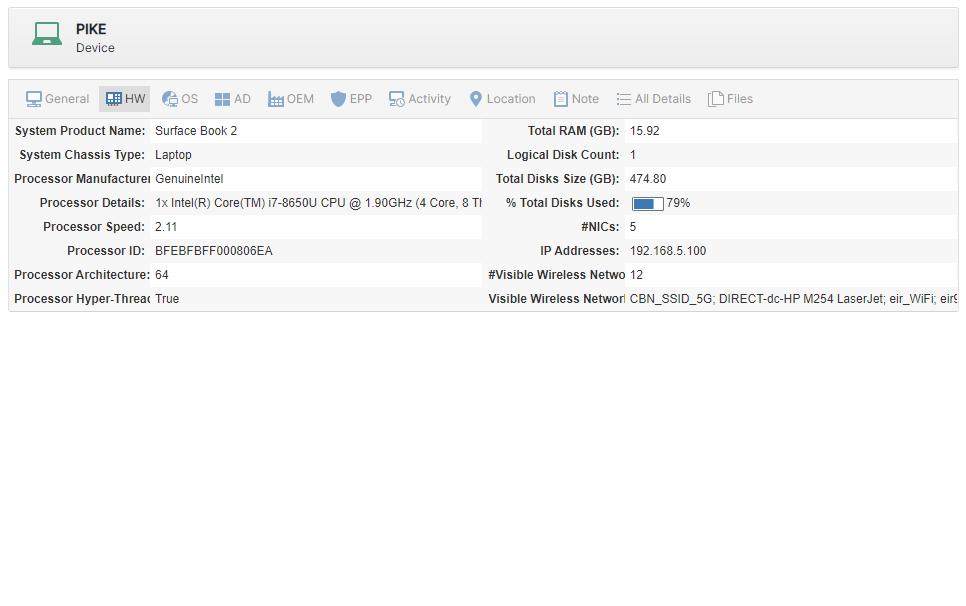 Intune Sam360 Scan Hardware Details
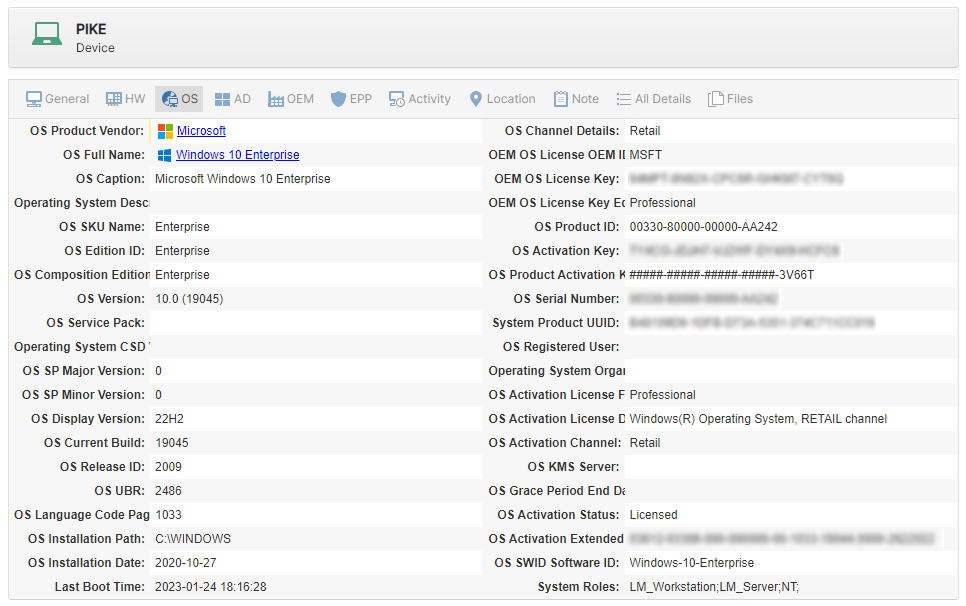 Intune Sam360 Scan Operating System Details
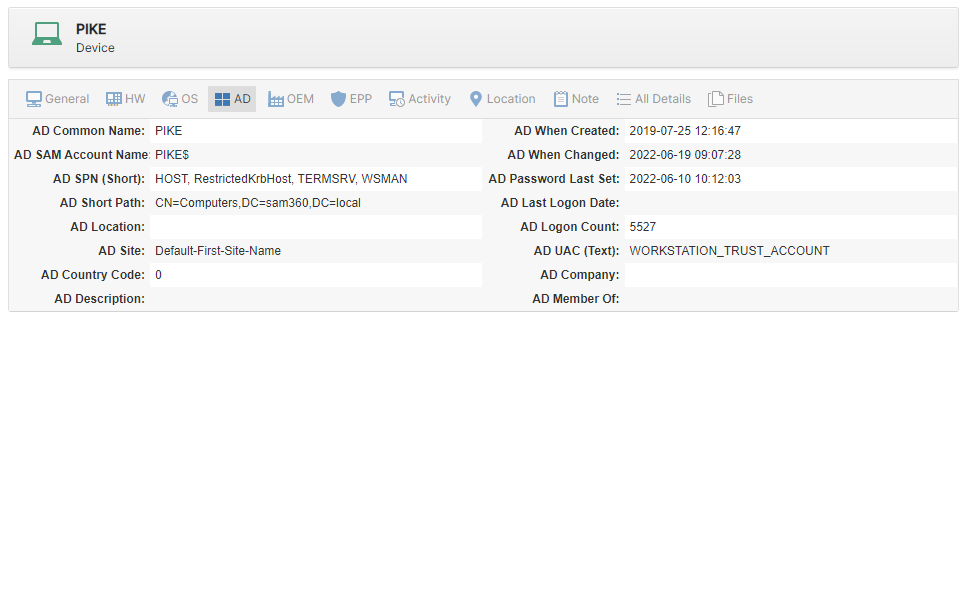 Intune Sam360 Scan Active Directory Details
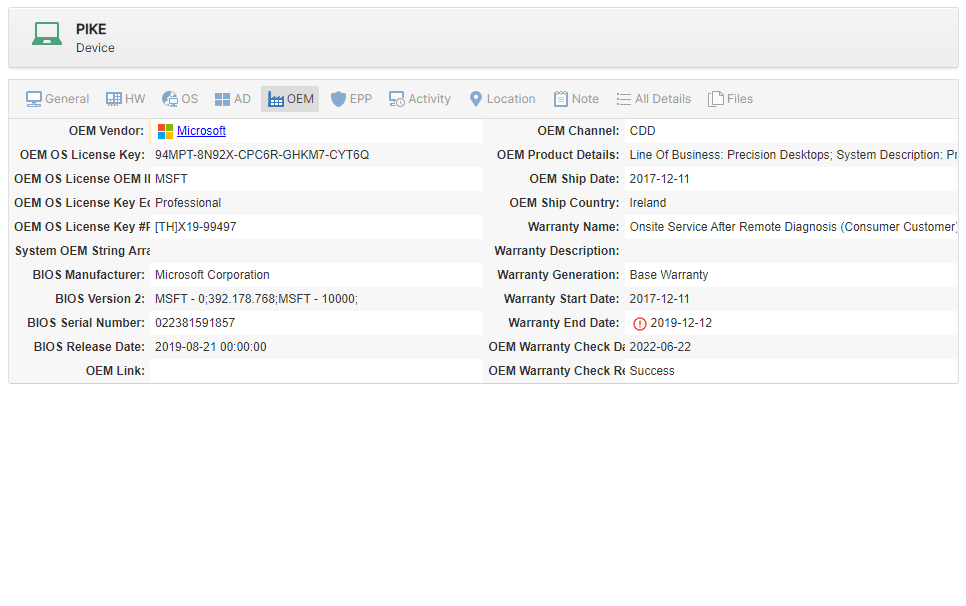 Intune Sam360 Scan OEM Warranty Details
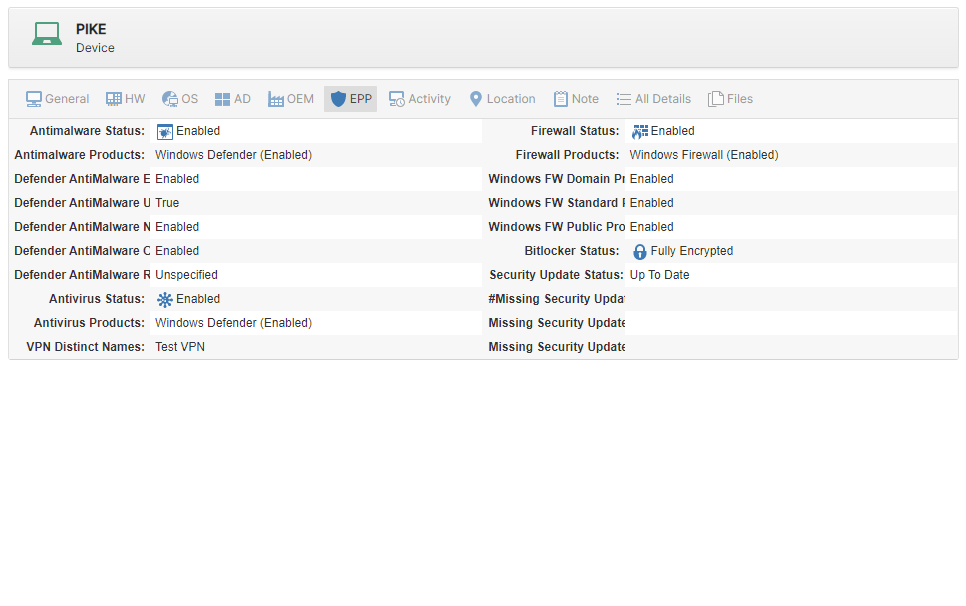 Intune Sam360 Scan End Point Protection Details
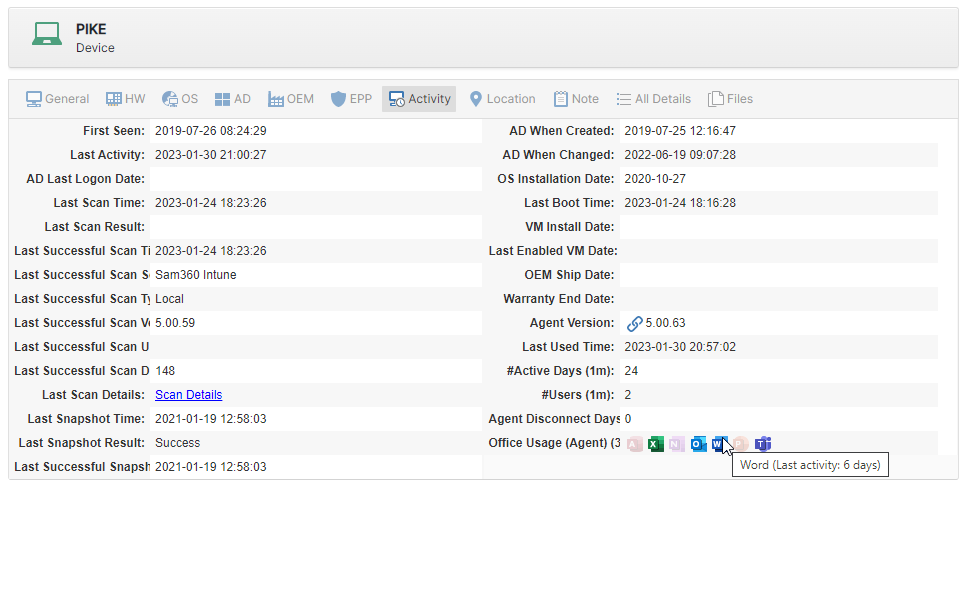 Intune Sam360 Scan Activity Details
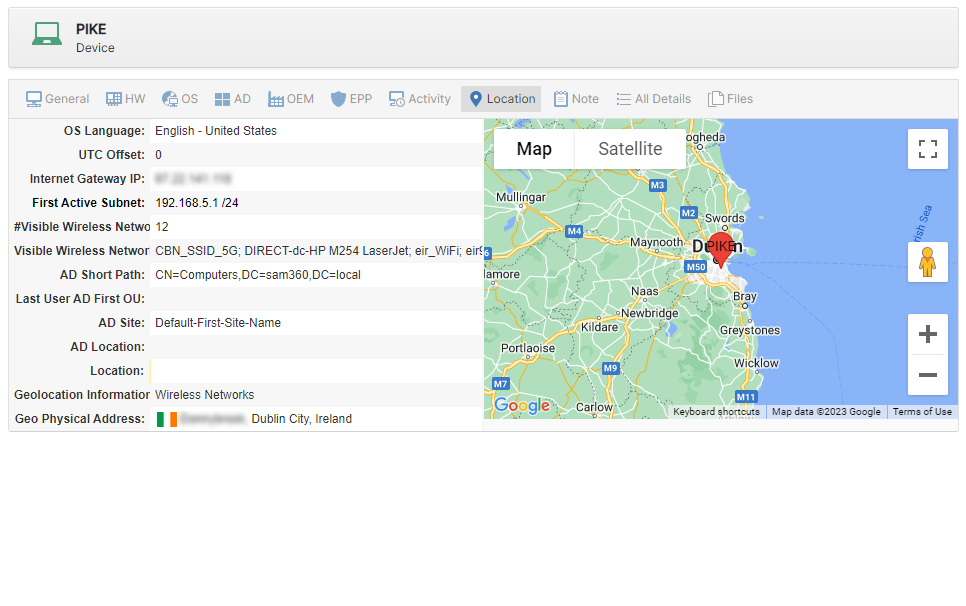 Intune Sam360 Scan Location Details
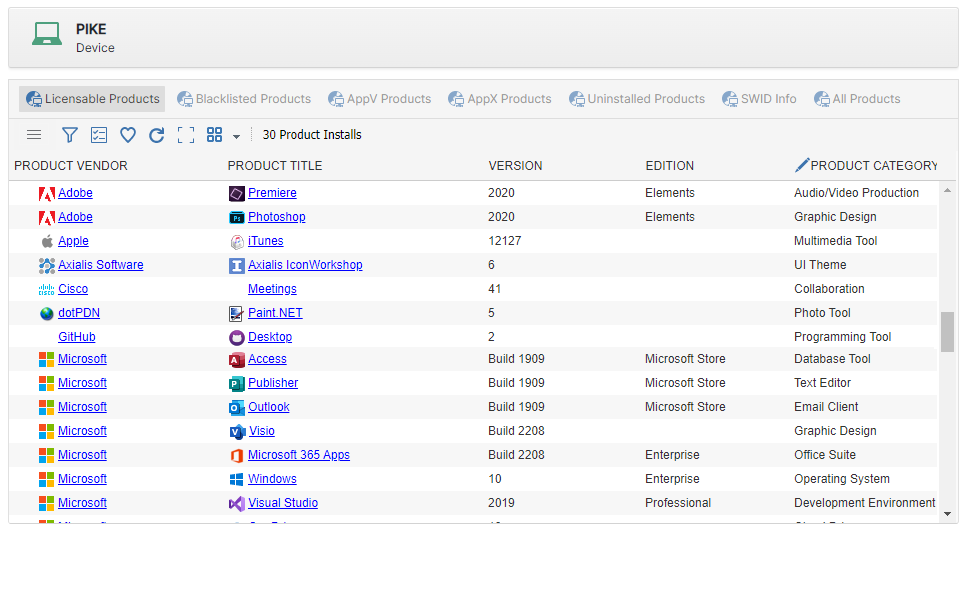 Intune Sam360 Scan Licensed Software Details
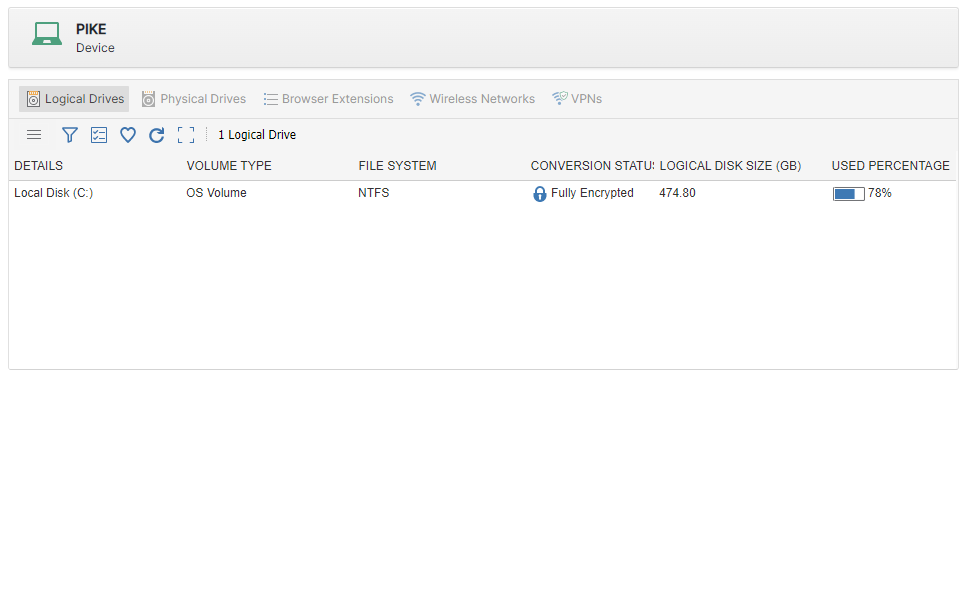 Intune Sam360 Scan Logical Drive Details
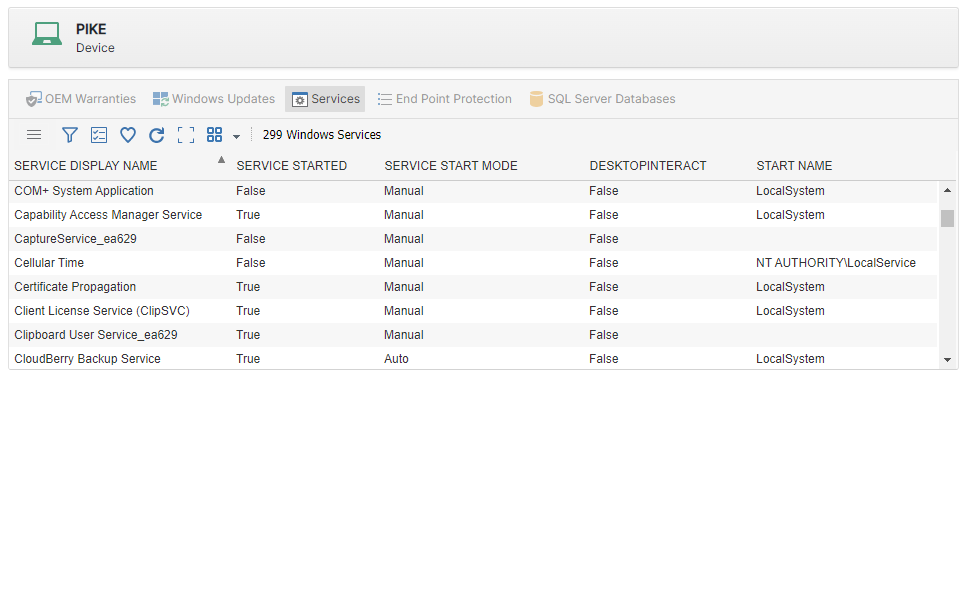 Intune Sam360 Scan Windows Services Details
How the Intune Integration Works
On each managed Windows device, the Sam360 Intune script:
- retrieves the Sam360 web scan tool from the Sam360 portal;
- runs a detailed hardware, software, configuration, and security inventory scan; and
- uploads the generated inventory file to Sam360.
Administrator Account Required During Setup
Use the same Microsoft 365 administrator account for both Microsoft sign-in prompts. The account must have either:
- the Global Administrator role; or
- the Privileged Role Administrator role together with either the Application Administrator or Cloud Application Administrator role.
The required roles allow the setup wizard to create the Sam360 application registration and client secret, grant admin consent to the required Microsoft Graph application permissions, and verify that the application credentials work.
Sam360 does not store the administrator's password or interactive sign-in tokens. After setup, the integration runs unattended as the dedicated Sam360 application, using the application client ID and client secret stored on the Management Point.
Microsoft Graph Application Permissions
To create and manage the Intune PowerShell platform script, Sam360 uses a dedicated application in the target Microsoft Entra tenant. The application is configured with the following Microsoft Graph application permissions.
| Permission | Used by Sam360 for |
|---|---|
Organization.Read.All | Read tenant organisation details. |
Directory.Read.All | Read directory information used to identify and correlate the Intune tenant and managed devices. |
Group.ReadWrite.All | Read and manage the groups used to target the Sam360 Intune scan. |
DeviceManagementScripts.ReadWrite.All | Create and maintain the Sam360 Intune PowerShell platform script. |
DeviceManagementConfiguration.ReadWrite.All | Manage the Intune configuration required to schedule and target the scan script. |
DeviceManagementManagedDevices.Read.All | Read Intune-managed device information. |
DeviceManagementApps.Read.All | Read Intune application information used by the integration. |
These are application permissions. The integration runs unattended as the Sam360 application identity; it does not run as the setup administrator or as an interactive user.
Before You Start
-
Check that the required PowerShell modules for Intune integration are installed on the Management Point.
- Start the Management Point Configuration Tool.
- Open the Advanced tab.
- Open the Components tab.
- Review the module list and the ActionRequired column.
- If any required module needs installing or updating, select Update Modules.

-
Ensure that the Management Point can make outbound HTTPS connections to the Microsoft endpoints used for authentication and Microsoft Graph.
Endpoint Purpose login.microsoftonline.com:443Microsoft identity platform authentication. aadcdn.msauth.net:443Microsoft authentication support content. graph.microsoft.com:443Microsoft Graph and Intune API access. -
Have one Microsoft 365 administrator account available for both sign-in prompts. The account must be a Global Administrator, or it must have Privileged Role Administrator together with either Application Administrator or Cloud Application Administrator.
Configure the Integration in the Management Point
1. Open the task list
Start the Management Point Configuration Tool and open the Tasks tab.

2. Add the Intune cloud service task
Select Add Task > Cloud Service > Intune.

3. Set the task name and inventory schedule
- Enter a clear task name and description.
- Set how often Intune should refresh the Sam360 inventory.
- Select Set Up Intune Integration.

4. Sign in twice and approve the application permissions
- At the first Microsoft sign-in prompt, sign in to the target Microsoft 365 tenant with the administrator account described above.
- Wait while the wizard creates the Sam360 Intune Integration application registration and client secret.
- When Microsoft's administrator-consent page opens in the default browser, sign in again with the same administrator account if prompted.
- Confirm that the consent page is for the correct tenant and the Sam360 Intune Integration application.
- Review the Microsoft Graph application permissions listed above, then select Accept.
- Return to the setup wizard and leave it running while it verifies the consent and application credentials.
5. Test and save the task
- When setup completes, confirm that the tenant and client details are populated.
- Select Test Settings to verify the connection.
- Select OK to save the task.
After Setup
The Management Point uses the stored application credentials to create and maintain the Sam360 Intune platform script. Intune then runs the script on managed Windows devices according to the refresh interval selected in the task.
Remove the Integration
- Delete the Intune task from the Management Point Configuration Tool or from the Sam360 portal.
- In the Microsoft Intune admin center, go to Devices > Scripts and remediations > Platform scripts, then delete the Sam360 Intune Scan Script for the Management Point.
- In the Microsoft Entra admin center, go to Enterprise applications and delete Sam360 Intune Integration.
Security Notes
- The application client secret remains on the Management Point and is not transmitted to Sam360 servers.
- The Sam360 application and Intune platform script can be disabled or removed at any time.
- Rotate the client secret before expiry and update the Management Point with the new value.


