
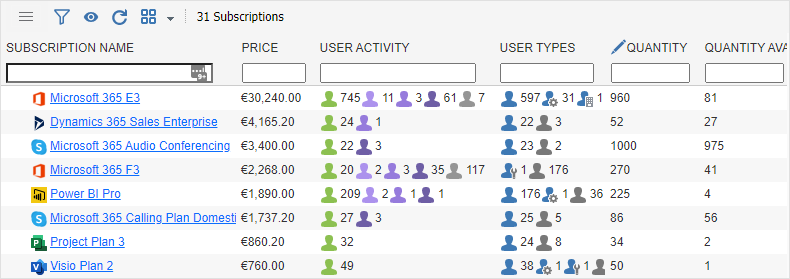
Sam360's Microsoft 365 integration imports Microsoft 365 tenant, directory, user, device, subscription, licence allocation, usage, and sign-in data on a scheduled basis.
The integration is configured from the Sam360 Management Point using the Microsoft 365 setup wizard. The wizard creates a dedicated Sam360 application registration and client secret, requests admin consent for the required Microsoft Graph application permissions, and stores the application credentials locally on the Management Point.
Some older Management Point screens may still use the legacy product label. In this article, the Sam360 cloud integration task is referred to as Microsoft 365.
Data Imported by Sam360
- Tenant details.
- Directory, user, and device information.
- Subscription entitlement and allocation information.
- Microsoft 365 usage data.
- Sign-in audit log and third-party application usage data.
Administrator Account Required During Setup
Use the same Microsoft 365 administrator account for both Microsoft sign-in prompts. The account must have either:
- the Global Administrator role; or
- the Privileged Role Administrator role together with either the Application Administrator or Cloud Application Administrator role.
The required roles allow the setup wizard to create the Sam360 application registration and client secret, grant admin consent to the required Microsoft Graph application permissions, and verify that the application credentials work.
Sam360 does not store the administrator's password or interactive sign-in tokens. After setup, the integration runs unattended as the dedicated Sam360 application, using the application client ID and client secret stored on the Management Point.
Microsoft Graph Application Permissions
To collect Microsoft 365 tenant, directory, licence, usage, and sign-in data, Sam360 uses a dedicated application in the target Microsoft Entra tenant. The application is configured with the following Microsoft Graph application permissions.
| Permission | Used by Sam360 for |
|---|---|
User.Read.All | Read Microsoft 365 user profile information used for user, licence, and activity reporting. |
Reports.Read.All | Read Microsoft 365 usage reports. |
Device.Read.All | Read device information associated with Microsoft 365 and Entra records. |
Directory.Read.All | Read directory objects and relationships used to correlate users, groups, licences, devices, and tenant metadata. |
Organization.Read.All | Read tenant organisation details and Microsoft 365 tenant metadata. |
AuditLog.Read.All | Third-party application usage reporting. |
UserAuthenticationMethod.Read.All | Security reporting. |
Sites.Read.All | SharePoint storage reporting. |
These are application permissions. The integration runs unattended as the Sam360 application identity; it does not run as the setup administrator or as an interactive user.
Before You Start
-
Check that the required PowerShell modules for Microsoft 365 integration are installed on the Management Point.
- Start the Management Point Configuration Tool.
- Open the Advanced tab.
- Open the Components tab.
- Review the module list and the ActionRequired column.
- If any required module needs installing or updating, select Update Modules.

-
Ensure that the Management Point can make outbound HTTPS connections to the Microsoft endpoints required for authentication, Microsoft Graph, and Exchange Online during setup and scheduled synchronisation.
Endpoint Purpose login.microsoftonline.com:443Microsoft identity platform authentication. aadcdn.msauth.net:443Microsoft authentication support content. graph.microsoft.com:443Microsoft Graph API access. ps.outlook.com:443Exchange Online PowerShell access where required by the integration. -
Have one Microsoft 365 administrator account available for both sign-in prompts. The account must be a Global Administrator, or it must have Privileged Role Administrator together with either Application Administrator or Cloud Application Administrator.
Configure the Integration in the Management Point
1. Open the task list
Start the Management Point Configuration Tool and open the Tasks tab.

2. Add the Microsoft 365 cloud service task
Select Add Task > Cloud Service > Microsoft 365.

3. Set the task name and schedule
- Enter a clear task name.
- Set the schedule for the daily Microsoft 365 sync.
- Select Set Up Microsoft 365 Integration.

4. Sign in twice and approve the application permissions
- At the first Microsoft sign-in prompt, sign in to the target Microsoft 365 tenant with the administrator account described above.
- Wait while the wizard creates the Sam360 Microsoft 365 Integration application registration and client secret.
- When Microsoft's administrator-consent page opens in the default browser, sign in again with the same administrator account if prompted.
- Confirm that the consent page is for the correct tenant and the Sam360 Microsoft 365 Integration application.
- Review the Microsoft Graph application permissions listed above, then select Accept.
- Return to the setup wizard and leave it running while it verifies the consent and application credentials.
5. Test and save the task
- When setup completes, confirm that the tenant and client details are populated.
- Select Test Settings to verify the connection.
- Select OK to save the task.

After the First Sync
The Management Point will connect to Microsoft 365 using the stored application credentials and import the Microsoft 365 data used by Sam360 reports. Once imported, Microsoft 365 subscription and usage data appears in the portal.
Usage Report Anonymisation
- Go to the Microsoft 365 admin center.
- Open Settings > Org Settings > Services.
- Select Reports.
- Clear Display concealed user, group, and site names in all reports.
- Select Save.
Manual Setup Option
If your organisation requires the application registration to be created manually, contact Sam360 Support for the Microsoft 365 Manual Integration Setup Guide. Manual setup is not required when using the Management Point setup wizard.
If manual setup is used, create the app registration, create a client secret, grant the Microsoft Graph application permissions listed above, grant admin consent, and store the application client ID and client secret in the Sam360 Management Point. Do not send the client secret by email; enter it directly into the Management Point or provide it using the customer's approved secure credential-transfer process.


