
Sam360 API — Introduction
Report data, authentication and API key management
The Sam360 API lets you retrieve report data from your Sam360 tenant for use in your own applications, reporting tools and automated integrations. Request a standard or shared custom report over HTTPS and receive its data in JSON format.
To get started, create an API Service Account for your integration and generate a secret API key. Send the complete key with each report request. This reference covers account setup, authentication, report URLs, request and response formats, and key management.
Before you start
- Log in to your tenant. You must be a Tenant Admin to create API Service Accounts and generate, manage or revoke their keys. If you are not a Tenant Admin, ask your tenant administrator to set up access for your integration.
- Choose a descriptive integration name and have a secure place to store the generated key, such as your integration platform’s secret store.
- Identify the report you want to retrieve and your tenant’s API region.
1. Create an API Service Account
- Open Settings using the cog icon, then select API Service Accounts in the left menu, below Portal Users.
- Click the blue New API Service Account button.
- Replace the suggested Display Name with a meaningful name, such as Reporting Integration. Add optional Comments to describe its purpose or owner.
- Click Create. Creating the account does not generate a key.
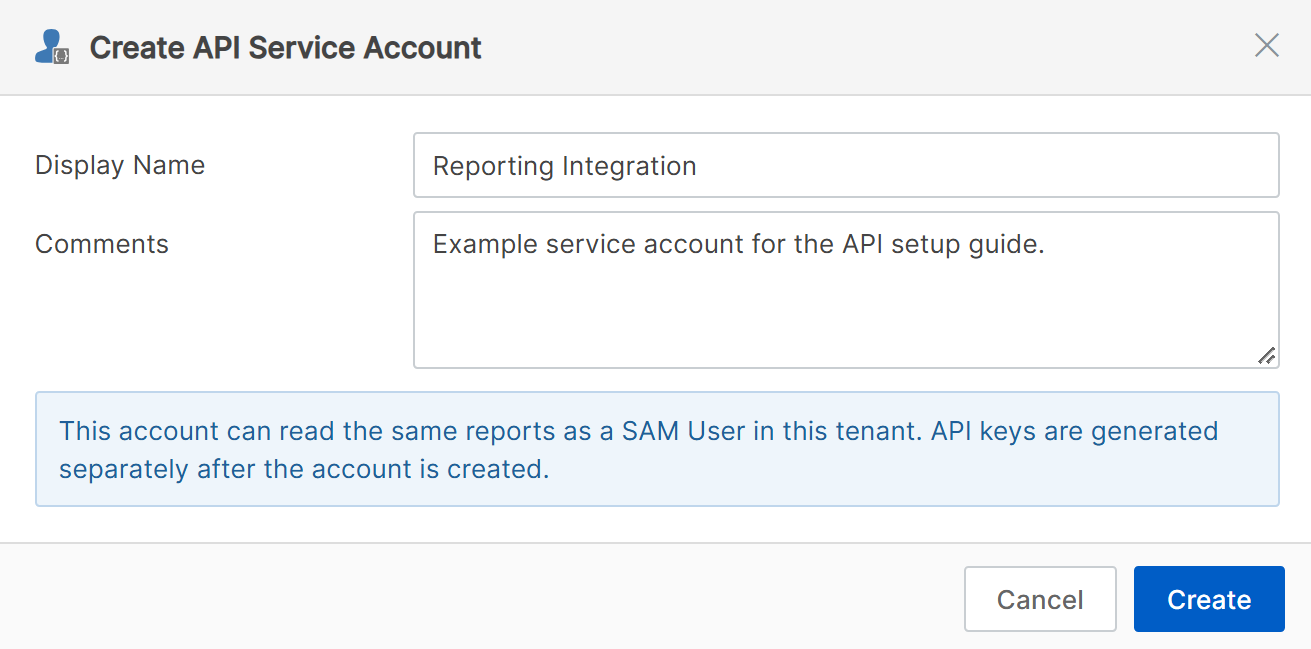
The account’s dashboard opens after creation. You can also open it later by clicking its Display Name in the account list. The API Service Account ID, such as api-7BQM1H, is a reference for identifying the account; you do not need to send it with a key-authenticated report request.
2. Generate and save a secret key
- On the account dashboard, click Generate API Key.

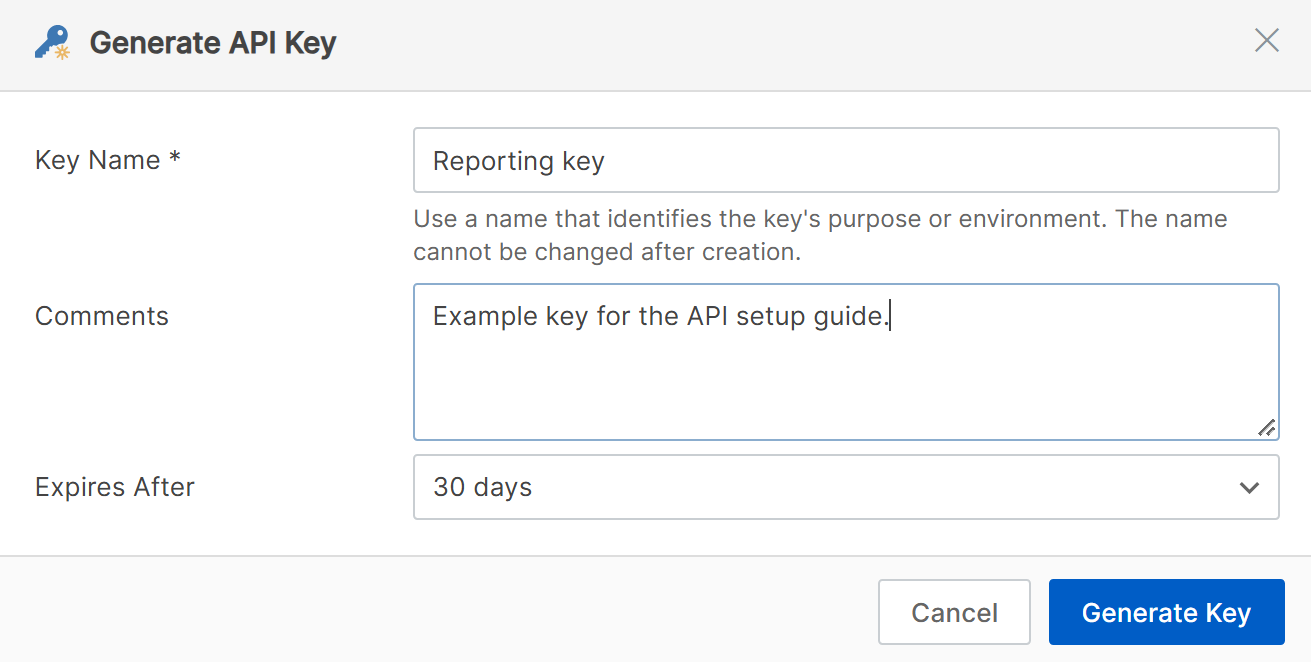
- Enter a required Key Name that identifies its purpose or environment, for example Production reporting. The name cannot be changed after creation.
- Add optional Comments. Comments can be edited later.
- Choose Expires After: 30, 90 or 365 days. Choose a period that fits your organisation’s credential policy and replacement schedule.
- Click Generate Key.
- Copy the complete API Key using the copy icon to the right of its value, and save it in your integration’s secret store. The key field briefly highlights when copied.
- Note the Expires UTC timestamp, then click Done.
3. Get the report’s API URL
- Open View Reports in the portal and run the report you want to retrieve. Set its filters as required.
- Open the report grid’s Menu, then select Export → Export with API.
- Copy the URL from the new browser tab. Use that URL in your integration, including any report filter parameters.
Use the copied URL in your application or script, with the API key in the Authorization header as shown below.
https://api.sam360.com/report/HardwareAllComputersGeneralDetails
A system report uses a report identifier like the example above. A saved custom report may use a numeric report identifier. Use the URL supplied by the portal rather than the portal’s dashboard URL.
| Tenant region | API base URL |
|---|---|
| Europe | https://api.sam360.com |
| Australia and New Zealand | https://api.au.sam360.com |
| United States | https://api.us.sam360.com |
Custom reports must be available to the service account. Share the report with the appropriate tenant users; a report private to your personal account will not automatically be available to the integration. For a predictable integration, consider a shared custom copy with the columns and filters you need, since standard reports can change over time.
4. Request report data
Send an HTTPS GET request to /report/{reportId}. Set the Authorization header to ApiKey, followed by a space and the complete generated key.
GET /report/HardwareAllComputersGeneralDetails HTTP/1.1
Host: api.sam360.com
Authorization: ApiKey <complete-generated-key>
Accept: application/json
The complete key identifies your service account and tenant, so you do not need to send a separate API Service Account ID or tenant ID for authentication. Keep the key out of URLs and query strings.
PowerShell
Make the key available to the process as SAM360_API_KEY through your secret store or integration runner. Set SAM360_REPORT_URL to the full URL copied from the portal. This example downloads the JSON to report.json.
$reportUrl = $env:SAM360_REPORT_URL
if ([string]::IsNullOrWhiteSpace($reportUrl) -or
    [string]::IsNullOrWhiteSpace($env:SAM360_API_KEY)) {
    throw 'Configure SAM360_REPORT_URL and SAM360_API_KEY first.'
}

$headers = @{
    Authorization = "ApiKey $env:SAM360_API_KEY"
    Accept = 'application/json'
}

$report = Invoke-RestMethod -Method Get -Uri $reportUrl `
    -Headers $headers -ErrorAction Stop

ConvertTo-Json -InputObject $report -Depth 10 |
    Set-Content -Path './report.json' -Encoding utf8
curl (Bash or a similar shell)
Use the same environment variables and the ApiKey authorization scheme.
curl --fail --silent --show-error \
  --header "Authorization: ApiKey ${SAM360_API_KEY}" \
  --header "Accept: application/json" \
  --output report.json \
  "${SAM360_REPORT_URL}"
5. Read the response
A successful request returns HTTP 200 and a JSON array of arrays. The first array contains the column names. Each subsequent array is a data row, with values in the same column order.
[
  ["Computer Name", "Operating System", "Last Scan"],
  ["CONTOSO-PC01", "Windows 11", "2026-09-15 08:30:00"],
  ["CONTOSO-PC02", "Windows 11", null]
]
This is an illustrative response; the actual columns depend on your report. Preserve the header row and map each value to its corresponding column. Values can include text, numbers and null. An empty report contains its header row with no data rows. Dates use YYYY-MM-DD; date/time values use YYYY-MM-DD HH:mm:ss. Fields labelled UTC are UTC timestamps.
Wait for the complete response and validate the JSON before replacing previously imported data. Run reports sequentially: only one report request can run at a time per account, even when you use multiple keys.
6. Review, replace and revoke keys
As a Tenant Admin, open your service account’s API Keys tab to review and manage its keys. You can see each key’s name, status, expiry and last-used details. The icon beside each name is blue for an active key, yellow when it expires in fewer than 10 days, grey when expired and red when revoked.
Replace a key before it expires
- Generate a new key on the same account and save it securely.
- Update the integration’s stored secret, then run a report to confirm the new key works.
- Revoke the old key once the integration has switched successfully.
Revoke a key
- Select the key’s row using its selection checkbox in the API Keys report.
- Open Menu → Service Account API Key → Revoke API Key.
- Check that you selected the correct key, then click Revoke Key in the confirmation dialog.
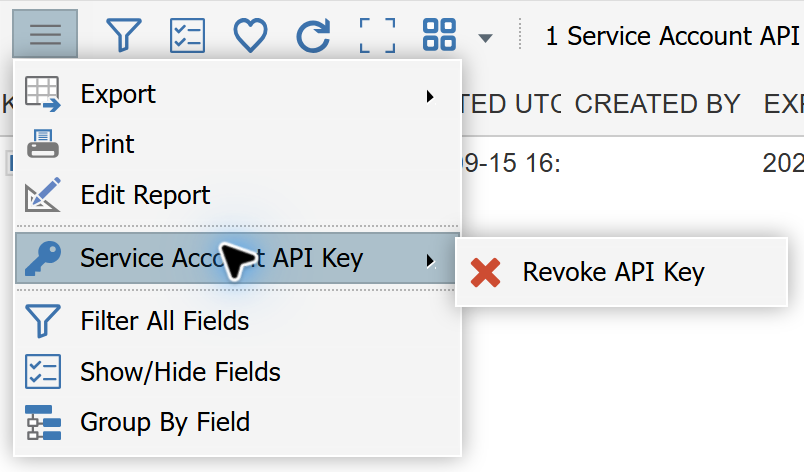
Revocation cannot be undone. The key remains listed for audit purposes, and subsequent API requests using it are rejected. Revoke a lost or exposed key promptly and configure a replacement.
Check activity
Go to Settings → API Service Accounts → Log In History for recent API login activity. The account dashboard’s History tab also shows account and key activity. Repeated logins are grouped within a 30-minute period, so login history is not a list of every report request. Successful authentication can be recorded even when the requested report subsequently fails.
Troubleshooting
| HTTP status | What to check |
|---|---|
| 400 Bad Request | Check the report ID, custom report sharing and filter parameters. A report unavailable to a SAM User cannot be read by the service account. Do not repeat query parameter names. |
| 401 Unauthorized | Check that the header contains ApiKey and the complete key. Confirm you are using the correct regional API server, the key has not expired or been revoked, and the account is still live. |
| 403 Forbidden | Use HTTPS. A service account cannot request data for another tenant, including through tenant filter overrides. |
| 404 Not Found | Check the server and route. Use the report API URL, with /report/, rather than a portal URL. |
| 429 Too Many Requests | Another report is running for this account. Wait for it to finish, honour the Retry-After response header and send requests sequentially. |
| 500 Server Error | Retry later. If the issue persists, contact your Sam360 partner or support with the report URL, request time and error response. |
Keep secrets and Authorization headers out of logs, source control, support requests and screenshots. Cache report data where practical and schedule large exports outside peak usage periods.
Updated 2026-09-15.